
Melvor Idle 2 Mods: Official Support and Community Tools
Does Melvor Idle 2 support mods? Check the developer’s plans, what the Steam tag means, and how to back up a character before trying community mods.
Does Melvor Idle 2 have official mod support?
The Melvor team confirmed on November 17, 2026 that official mod support is planned for a future update. As of November 23, 2026, we found no confirmed release date for official support or announcement of Steam Workshop integration. Follow the Early Access roadmap for a timeline when the developer publishes it. Developer’s Steam reply · Official launch post
| What you’re looking for | Status at the time of checking |
|---|---|
| Official mod support | Planned. No confirmed release date |
| Built-in mod manager | No verified launch or availability date for the sequel |
| Steam Workshop | Integration unconfirmed |
| Unofficial mods | Community projects exist. Check support for your exact build |
Steam displays Moddable in its list of user-defined tags. Use the developer’s announcements to check the availability of a built-in manager or Workshop. If a tutorial shows the original Melvor Idle, check whether it has a separate section for the sequel before following it. Steam store feature list and tags
Why do older posts say the game has a mod manager?
A player quoted earlier Steam store copy describing an in-game manager. In the same November 17 discussion, the Melvor community manager confirmed that the store wording had been updated to clarify what was available. For future updates, look for patch notes that name the feature and the game version it ships with. Steam discussion and developer replies
Are there community mods already?
Yes. For example, the public Springs-Tea repository describes community tools for combat simulation, item sources, recipe XP per hour and combat goals. The project’s README and release notes are where to check its requirements and update history. Patch compatibility can change during Early Access. Springs-Tea community project
If your main goal is finding a drop or recipe, start with the in-game item source and use information. For equipment comparisons, the game has a Quick-Equip menu. These features can answer common questions without adding anything to your installation.
Which tools match what you want to do?
These are examples from the same community project. Use the project’s descriptions to pick a single tool that addresses your question, then check its own documentation and compatibility. Springs-Tea project documentation
| What you want to know | Tool to look for | What to compare |
|---|---|---|
| Which enemy should I fight with this loadout? | Combat Simulator | Compare estimated supplies used and rewards for the same character and loadout |
| Where can I obtain a particular ingredient? | Item Sources or Item Encyclopedia | Compare the listed drop, recipe or other source with the areas and skills you have unlocked |
| Which recipe should I use to train? | Recipe Rates | Compare estimated XP per hour alongside ingredients used per hour and how long your stock lasts |
| Which fishing spot suits my current goal? | Fishing Rates | Check catch rates, bait use and XP based on whether you need food, profit or levels |
For combat, use the estimates to shortlist fights. Then spend a few minutes in-game with the same gear, food and stance to check actual consumption before starting a lengthy session. The safe idle combat checklist explains what to observe.
How do you prepare before trying a community mod?
First, keep a copy of your character’s current save. Load the character, open the top-right in-game menu and choose Copy Save string to Clipboard. Paste the text into a private local file, then label it with the character’s name and date. Official save-menu patch notes
Check the mod’s update notes against your game build and review recent issue reports for known problems. If you try a mod, start with one at a time on a spare character. After a game update, check compatibility again before loading your main character with it enabled. For updates about another platform, see the Android and iOS release status.
What should you check if a mod stops working after an update?
Start by recording the game build, the mod version and what changed. Check whether the mod author has posted compatibility notes for that particular game update. If you can disable the mod, repeat the same short action on a spare character with it off to see whether the issue also appears in the unmodified game.
- The affected screen works with the mod disabled. Check the mod’s issue tracker for the same symptom. If you report it, include both versions, the affected screen and the steps to reproduce it.
- The same behavior occurs without the mod. Check the official patch notes for related changes before treating it as a mod compatibility issue.
- Your main character shows unexpected progress or inventory changes. Keep the backup you made before testing and preserve a separate copy of the current state before attempting recovery.
What would confirm that official mod support is live?
Look for a release note that lists the feature as shipped in a specific build. It should explain where to open the official interface and which mod sources it supports. A roadmap can tell you when to check again. Once patch notes announce a release, check whether they also mention migration for existing community mods. Developer’s roadmap comment
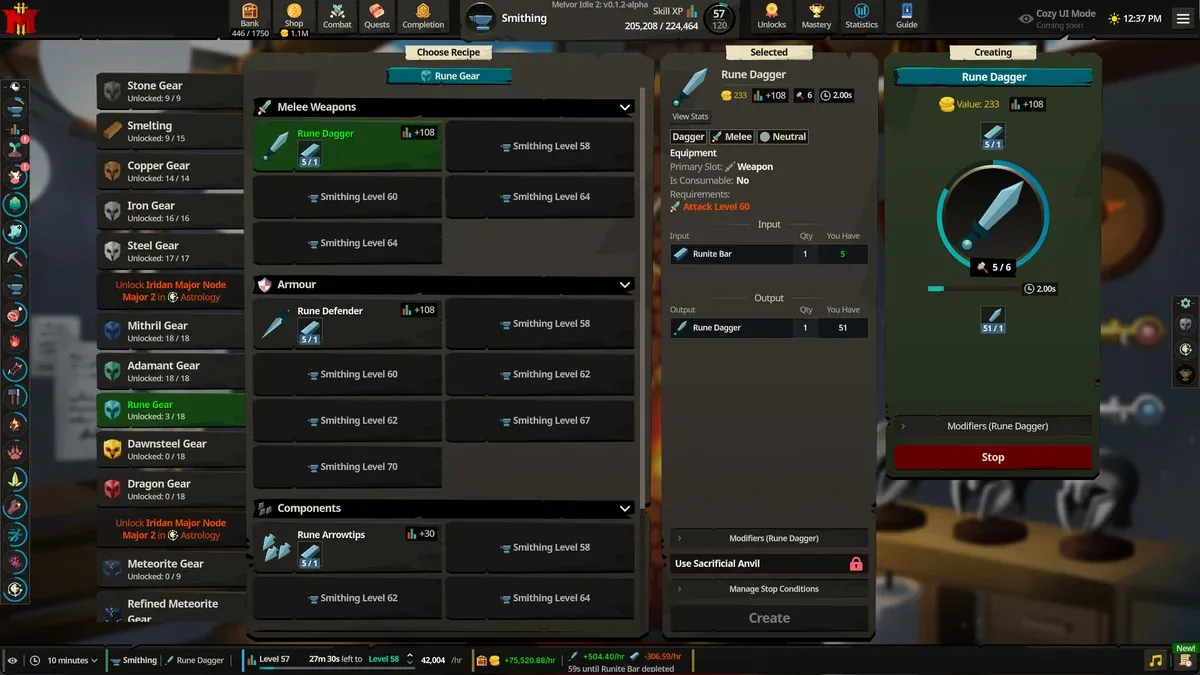
Cover image: PC gameplay screenshot from the official Steam store gallery.
Related Articles
combat
Melvor Idle 2 Quick-Equip Guide: Weapons and Loadouts
Find missing weapons in Melvor Idle 2’s Quick-Equip menu, filter by combat style, and use Tab to compare equipment against different loadouts.
combat
Melvor Idle 2 Idle Combat Guide: Check Auto-Eat and Enemy Damage
Check Auto-Eat, enemy damage, special attacks, and supplies before committing to unattended combat in Melvor Idle 2.
dungeons
Melvor Idle 2 Hobgolbin Camp: First Dungeon Walkthrough
Unlock Hobgolbin Camp in Melvor Idle 2, follow all four waves, and prepare enough food and gear for a supervised first clear.
Was this helpful?
Thanks for the feedback!